
Media Library
Kompass ships a full-featured media library that lets you manage all digital assets from a single interface — no third-party DAM required.
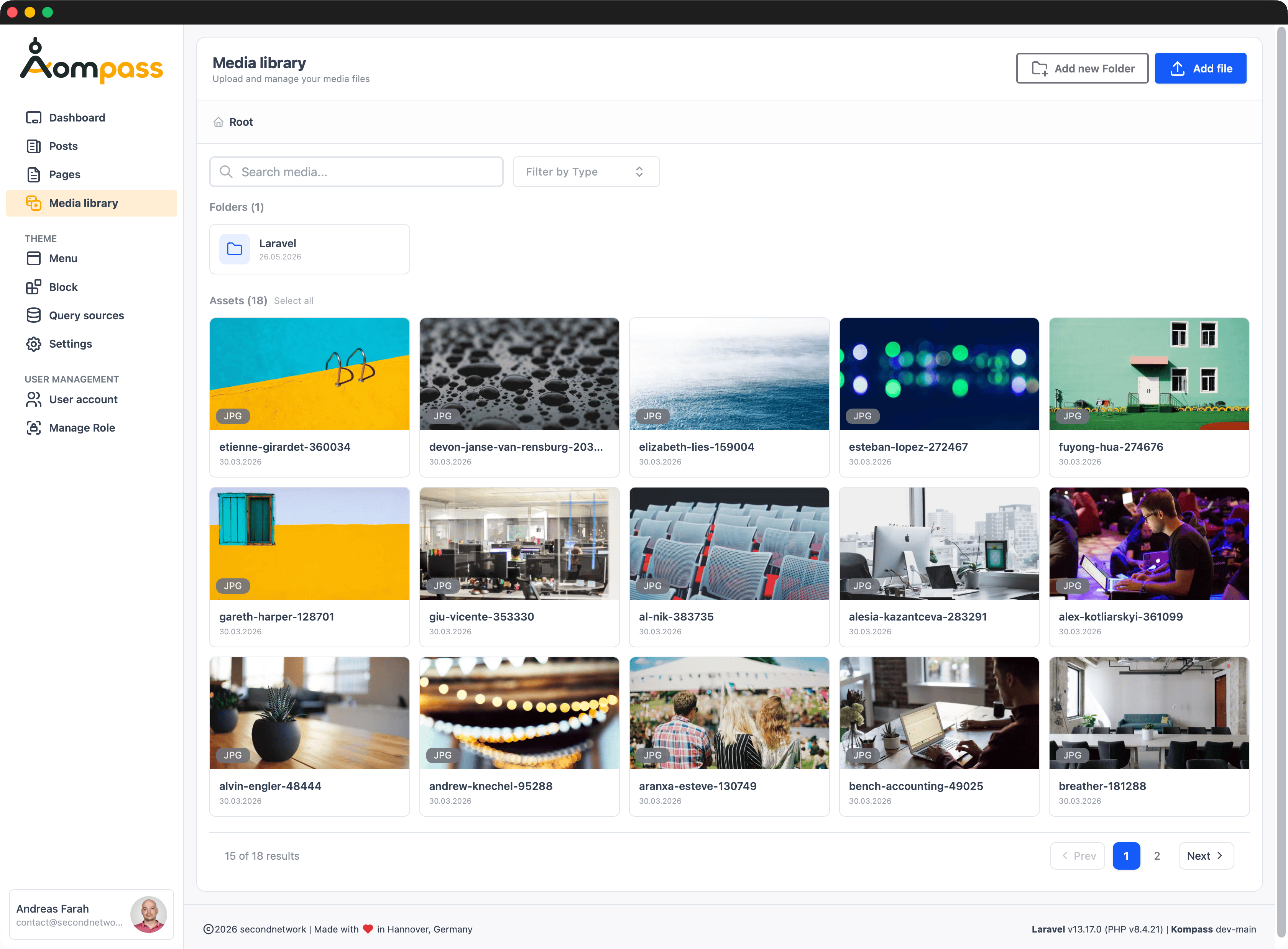
Features
- Upload, rename, move, and delete files
- Nested folder organisation
- Drag & drop multi-file upload
- Automatic conversion to WebP and AVIF
- Responsive
srcsetgeneration - Support for images, PDFs, and documents
Livewire Upload Configuration
Kompass uses Livewire's temporary upload mechanism. Configure it in config/livewire.php:
'temporary_file_upload' => [
    'disk'       => 'local',
    'directory'  => 'livewire-tmp',
    'middleware' => 'throttle:60,1',
    'rules'      => 'file|max:12288', // 12 MB
    'cleanup'    => true,
],
Run php artisan storage:link to make uploaded files publicly accessible.
Large file uploads
If large file uploads fail, increase upload_max_filesize and post_max_size in your php.ini configuration and restart your web server.
Rendering files on the frontend
The Media block (and any view that needs to show a library file) renders each file through the <x-media-item> component. It inspects the file extension and picks the right output:
- Images (
jpg,jpeg,png,gif,webp,avif,svg) render as a normal picture (via<x-image>). - Non-image files (PDF, doc, sheet, archive, …) render as a download card — a full-width row showing the file name with a Download link and arrow.
<x-media-item :id="$fileId" class="w-full rounded-lg" />| Prop | Description |
|---|---|
id | The media file ID to render. Missing files render nothing. |
This is what powers the Media block: a gallery of images shows pictures, while a PDF or ZIP in the same block becomes a clean download card.