
Settings
The Settings panel gives you a single place to control site-wide options: branding, SEO defaults, language support, access control, and more. Changes take effect immediately without a deployment.
Sections
The admin Settings panel groups its pages into Theme Settings, Settings, and Tools.
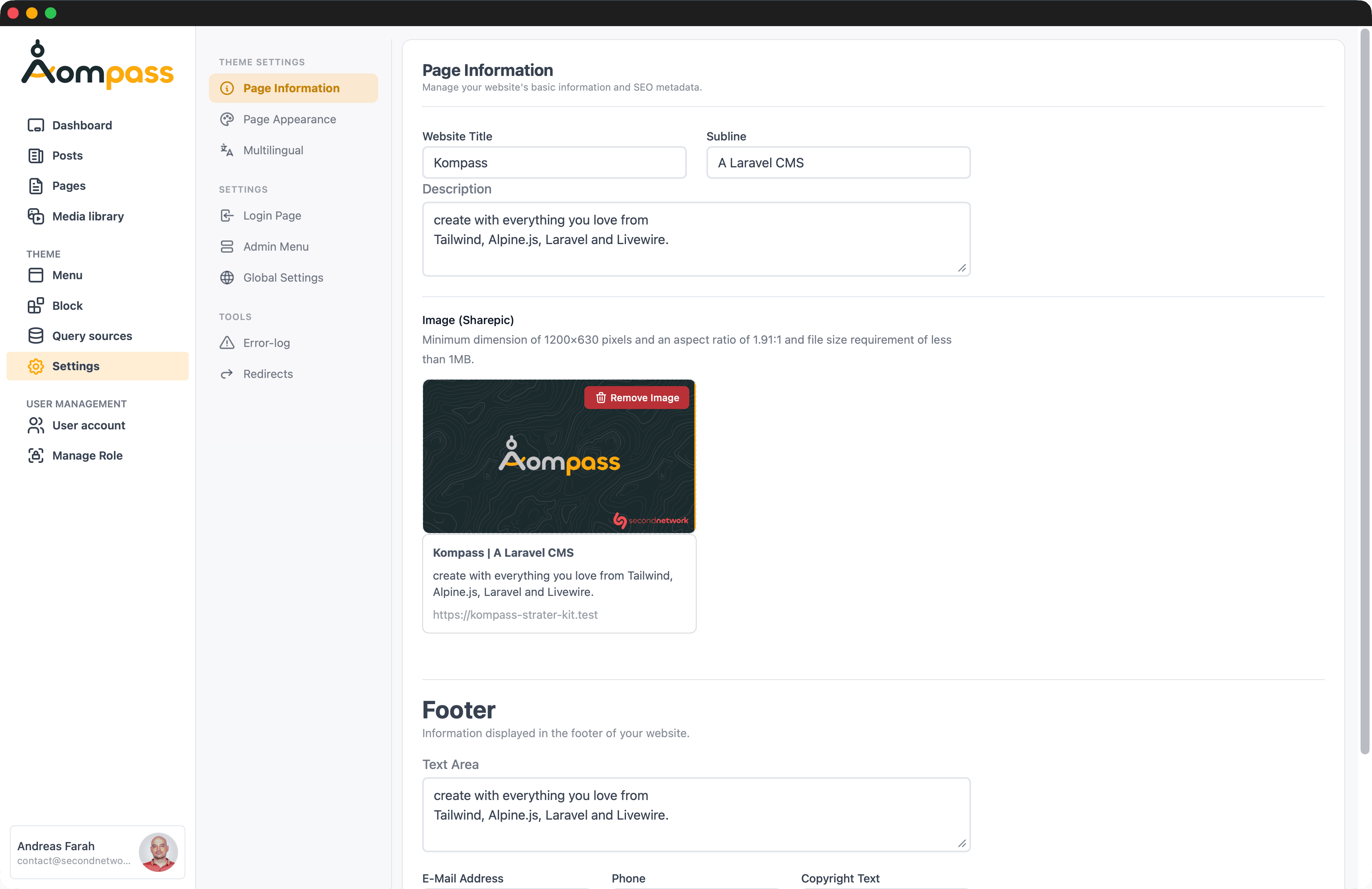
Page Information
Site identity and SEO defaults — website title, supline, and the fallback meta description / Open Graph image used when a page doesn't set its own. Individual pages can override these values.
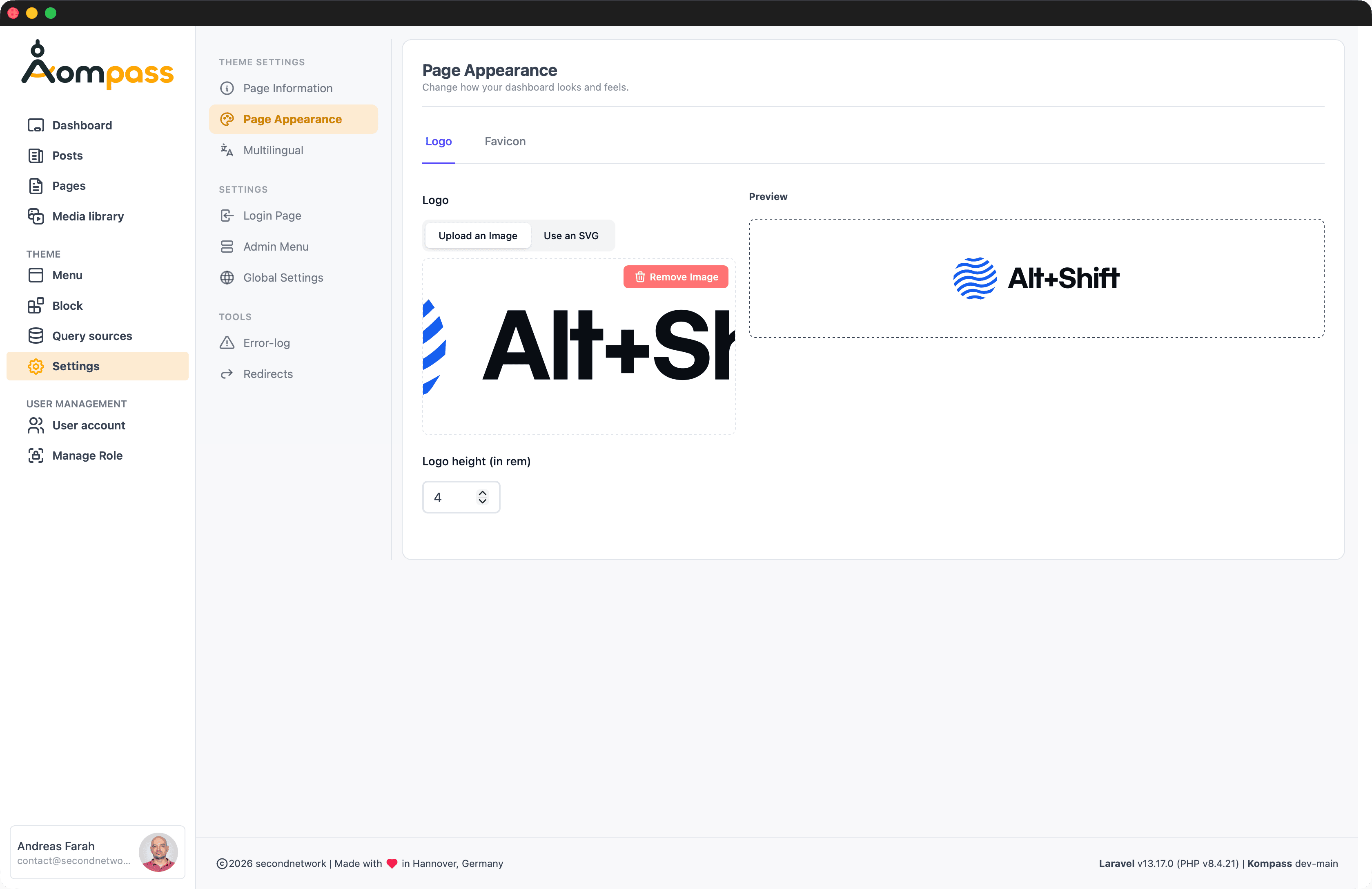
Page Appearance
Branding and colours for the public-facing site — logo, favicon (light/dark), and background colours or image.
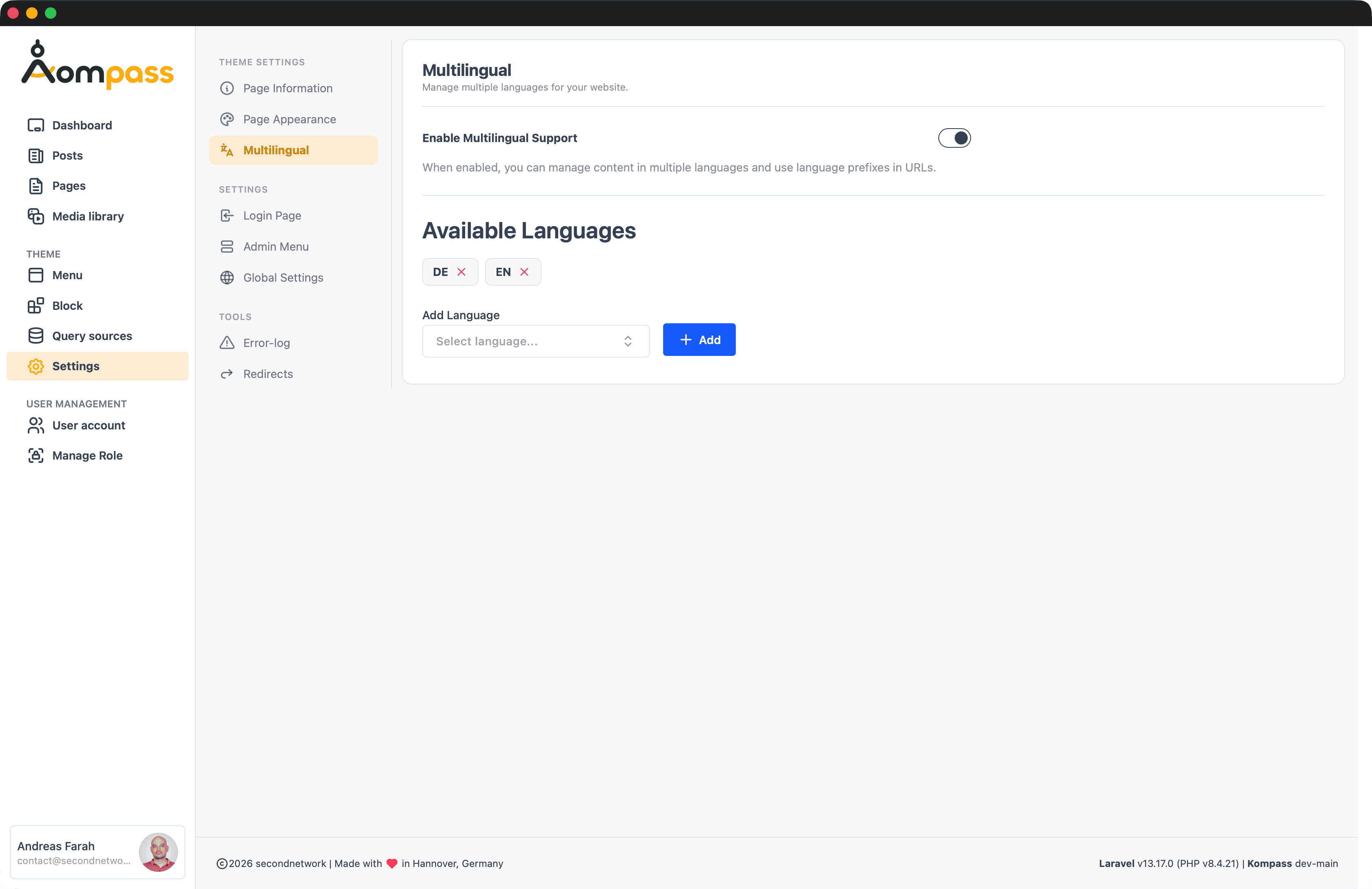
Multilingual
Toggle Enable Multilingual Support, then manage the Available Languages. Add a locale from the dropdown or remove one with the ✕. Once active, Kompass adds language prefixes to URLs and language switchers to all content types that support translations.
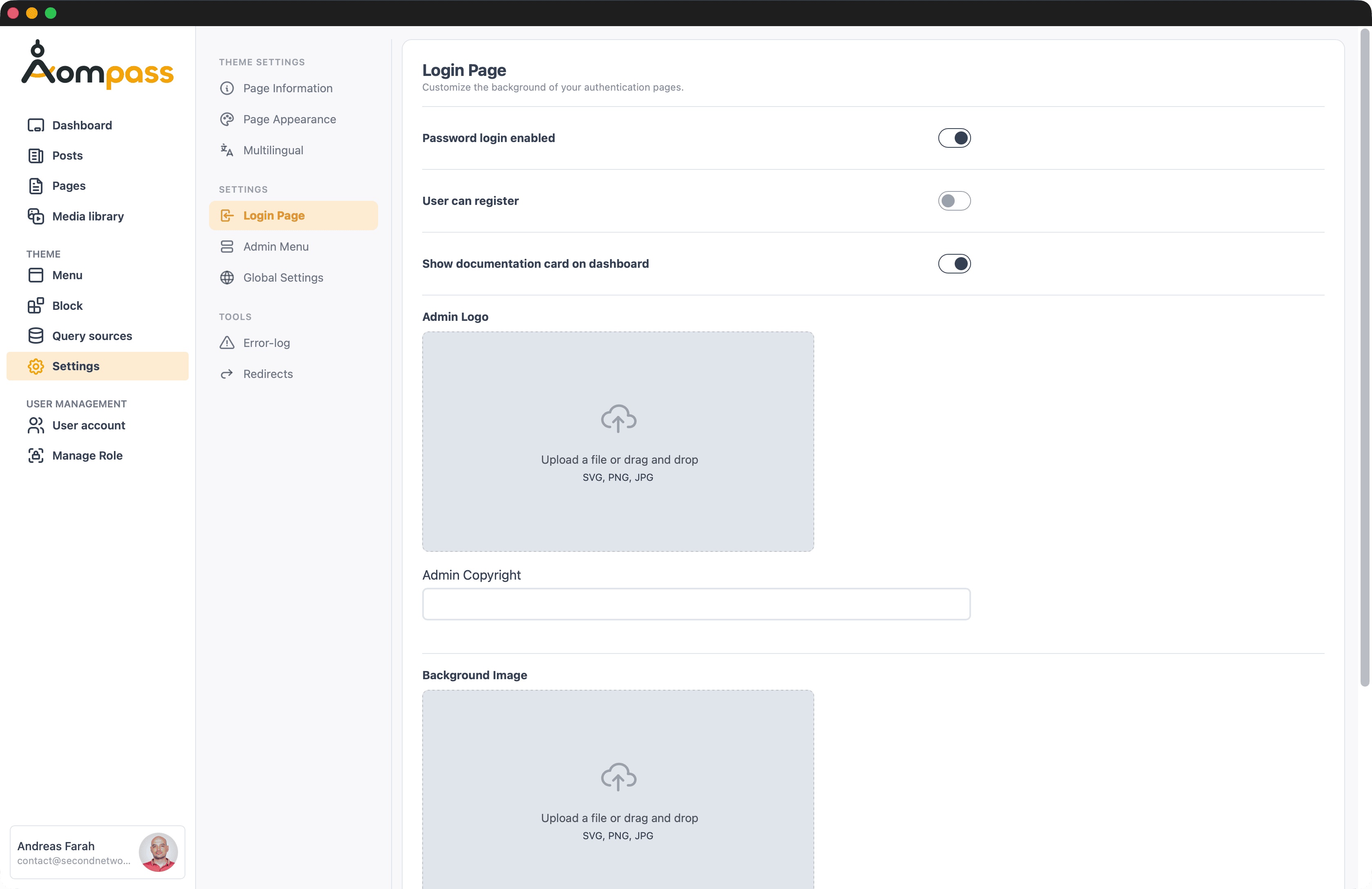
Login Page
Controls authentication and the look of the login screen:
- Password login enabled — allow password sign-in alongside passkeys.
- User can register — show the public registration form.
- Show documentation card on dashboard — toggle the help card on the admin dashboard.
- Admin Logo / Admin Copyright — branding for the backend and login screen.
- Background Image — the image behind the authentication pages.
Admin Menu
Toggle the visibility of items in the admin sidebar — Posts, Categories, Pages, and Media Library. Use this to hide sections that aren't relevant to your project.
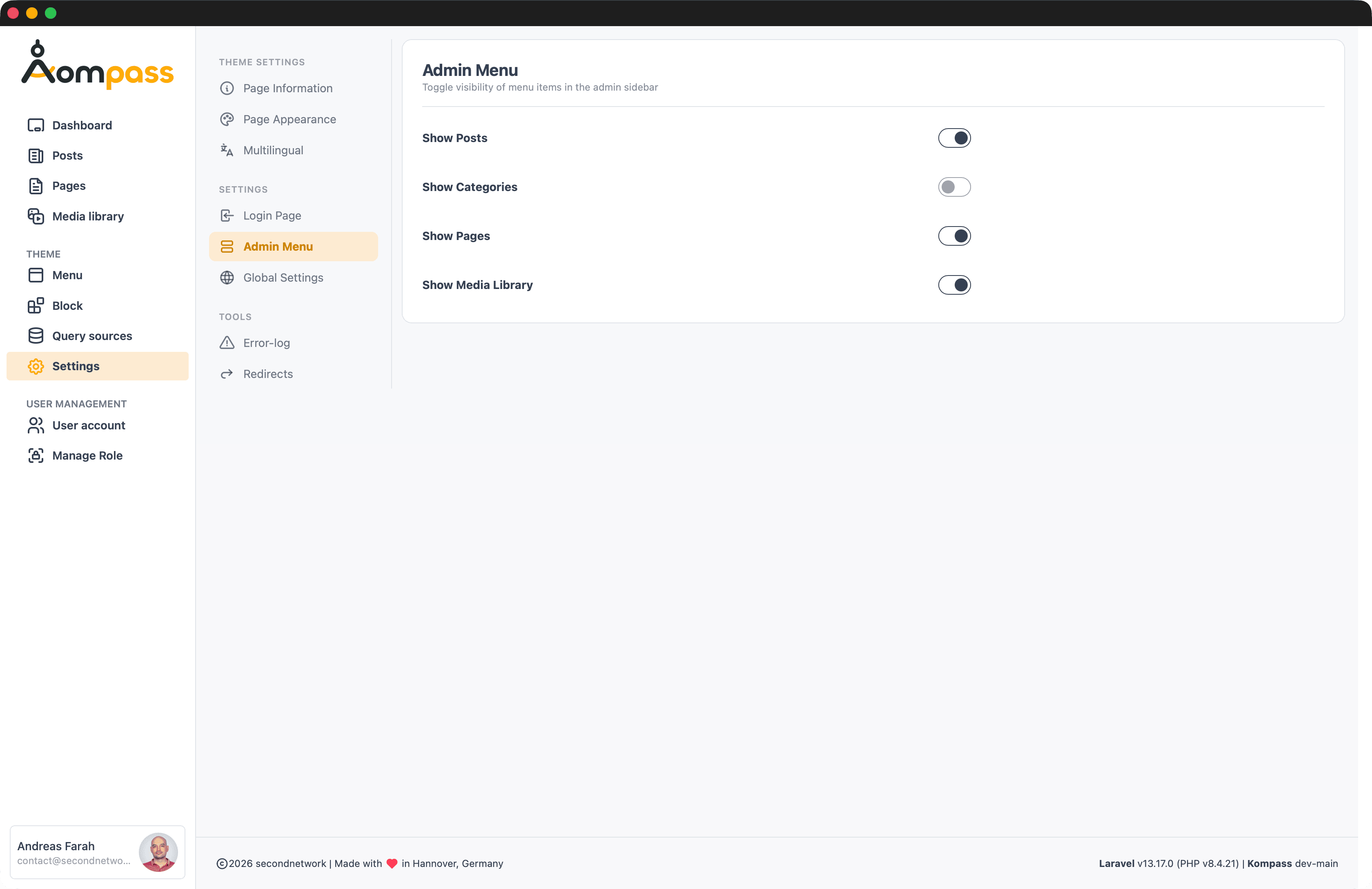
Per-role sidebar
For role-specific sidebar control (the Admin group and other menus), see the Menu Builder — the admin sidebar itself is a configurable menu.
Tools
The Tools group holds the Error-log and Redirects managers.
Global Settings
Settings are custom, typed values you define and read anywhere on your site. Each setting is stored in the settings table and identified by a group and a key, plus a type that decides how it's edited in the admin panel (a colour swatch, an image picker, a toggle, …).
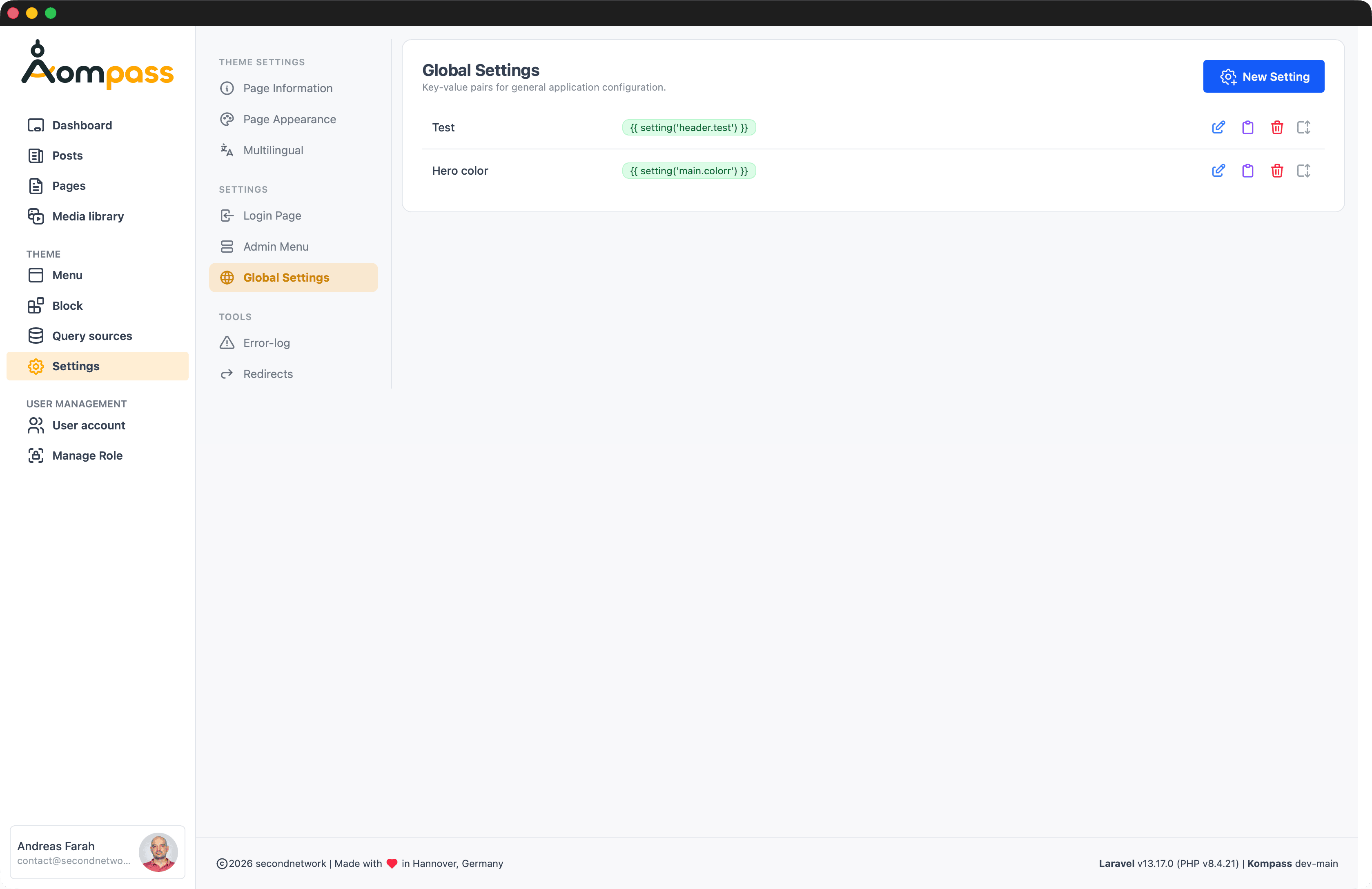
Open Settings → Global Settings in the admin panel to manage them. Each row shows its name and the ready-to-copy setting('group.key') snippet; New Setting adds one.
You read any value with the global setting() helper, addressing it by its dot-notated group.key. The group is yours to choose — organise settings however your theme is structured:
{{-- A "main" group for theme-wide values --}}
<body style="--brand: {{ setting('main.color') }}">

{{-- A "header" group for the site header --}}
<header>
    <p class="tagline">{{ setting('header.text') }}</p>
</header>

{{-- A "footer" group --}}
<footer>{{ setting('footer.copyright') }}</footer>
The second argument is a fallback, returned when the key doesn't exist yet — handy on a fresh install:
{{ setting('main.color', '#e73d00') }}Setting types
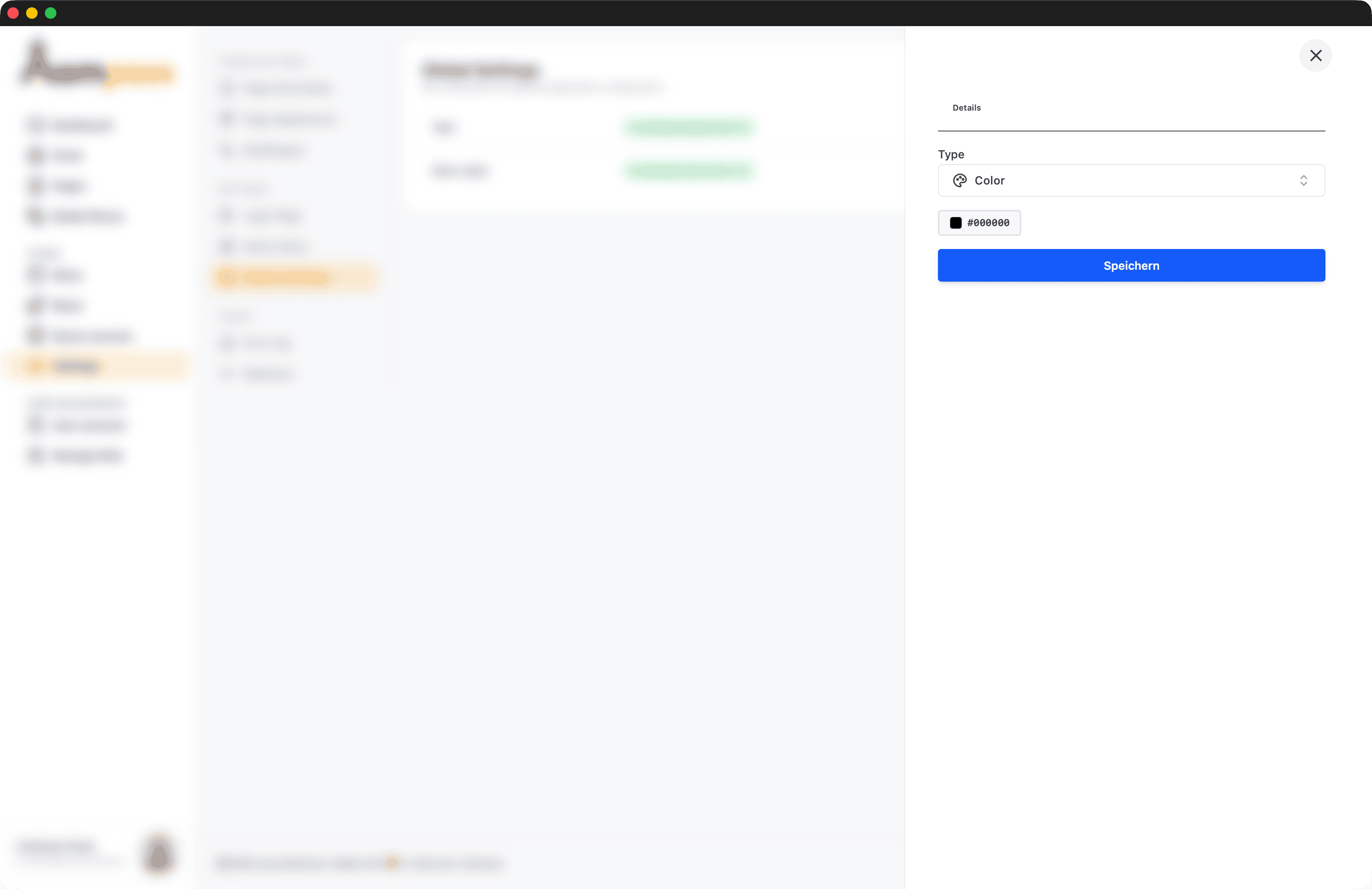
When you add a setting in the admin panel you pick its type. The type controls the editor shown in the backend and how the value comes back from setting():
| Type | Editor in the admin | setting() returns |
|---|---|---|
text | Single-line text input | The string, e.g. setting('header.text') |
wysiwyg | Rich-text editor | HTML markup |
image | Media picker | The image path — wrap in asset() |
link | Link field | The URL |
switch | On / off toggle | A boolean — use it in @if |
file | File upload | The file path |
color | Colour picker | A hex colour — #rrggbb, or #rrggbbaa with alpha from the opacity slider, e.g. setting('main.color') |
{{-- color --}}
<div style="background: {{ setting('main.color') }}">

{{-- image --}}
<img src="{{ asset(setting('header.background')) }}" alt="">

{{-- switch --}}
@if (setting('header.show_tagline'))
    <p>{{ setting('header.text') }}</p>
@endif
Where types come from
The available types are defined in config/kompass.php under setting_field_types. You can add your own. See Configuration File → Field Types.
Adding your own settings
Add settings straight from the admin panel — give each one a group, a key, and a type, then fill in the value. Because they're just rows in the settings table, you can also create them in code:
use Secondnetwork\Kompass\Models\Setting;

Setting::create([
    'group' => 'main',
    'key'   => 'color',
    'type'  => 'color',
    'name'  => 'Brand color',
    'data'  => '#e73d00',
]);
Then read it back anywhere with setting('main.color').
Settings are cached
On first use Kompass loads the whole table once and caches it forever (Cache::rememberForever('settings', …)), grouped by group then key. Creating, updating, or deleting a setting flushes that cache automatically — you never need to clear it by hand.
Reading a whole group
setting() only resolves an exact group.key (exactly two dot-segments). To work with a whole group at once, call setting() with no argument to get the full collection and index into it:
$main  = setting();                       // Collection, keyed by group
$color = $main['main']['color'] ?? '#e73d00';
Kompass's own settings
Kompass keeps its built-in values (site title, logo, multilingual, login behaviour, …) in the reserved global group — e.g. setting('global.webtitle'). Use your own group names for custom settings so they never collide with it.
See Helper Functions → setting() for the exact signature.