User Profile
Each user manages their personal settings in Account Settings, accessible via the profile menu in the top-right corner of the admin panel.
Tabs
Account Settings is split into four tabs:
| Tab | Description |
|---|---|
| Profile | Name, email, and avatar |
| Password | Change the account password |
| Appearance | Light / dark theme preference |
| Passkeys | Register and manage passkeys for this device |
Profile
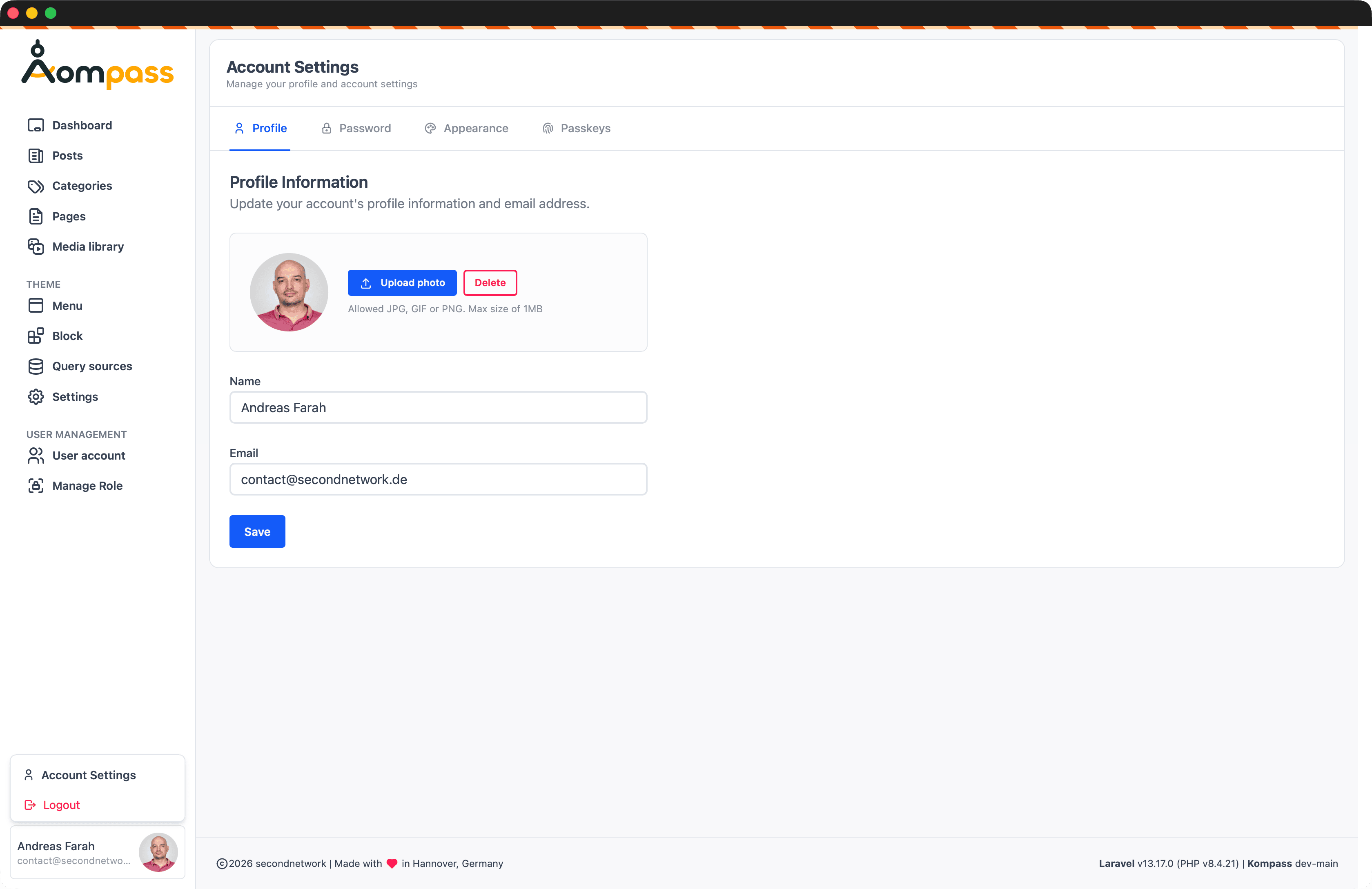
Update your name and email, and upload or remove an avatar (JPG, GIF, or PNG, max 1 MB). The avatar shows in the sidebar account card.
Password
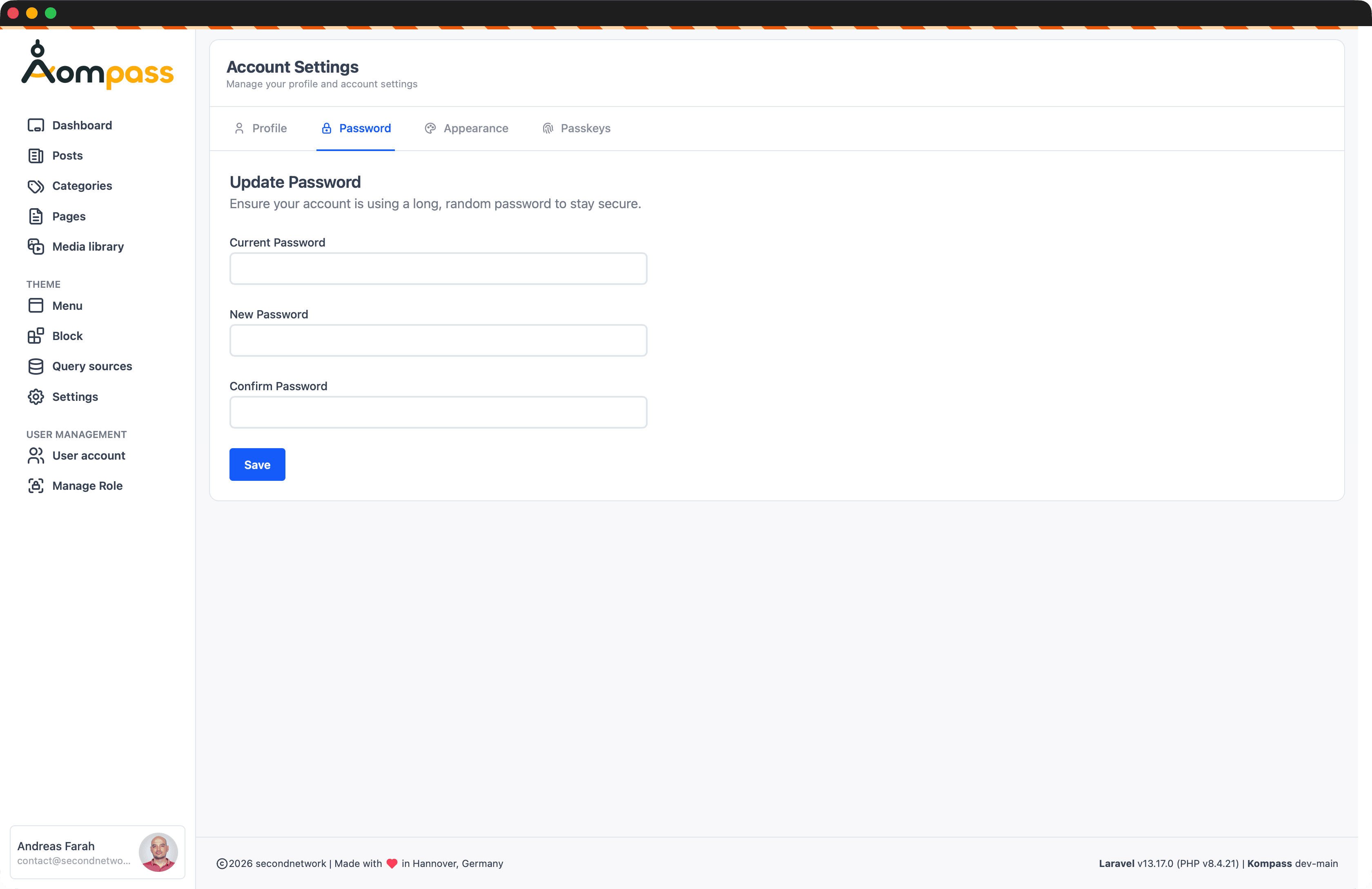
Change your account password by entering the current password and a new password twice. This applies only when password login is enabled — see the Login Page setting.
Appearance
Choose between Light and Dark mode for the admin panel. Light is the default.
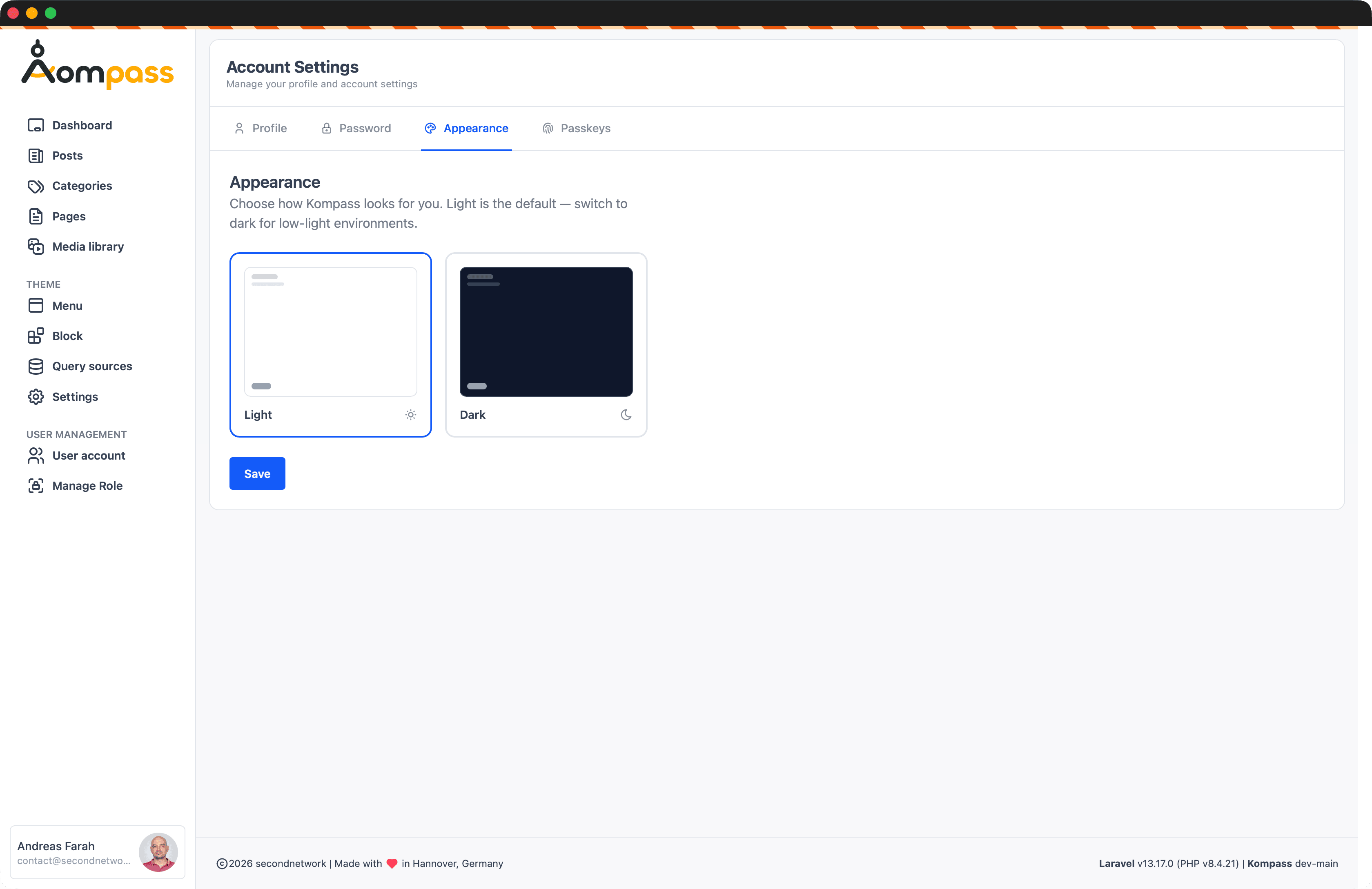
Kompass stores the selection in the theme column on the users table:
| Value | Description |
|---|---|
light | Light mode (default) |
dark | Dark mode |
Per-user, not site-wide
The theme preference is per-user and persists across sessions. Each admin can independently set their preferred mode without affecting other users.
Passkeys
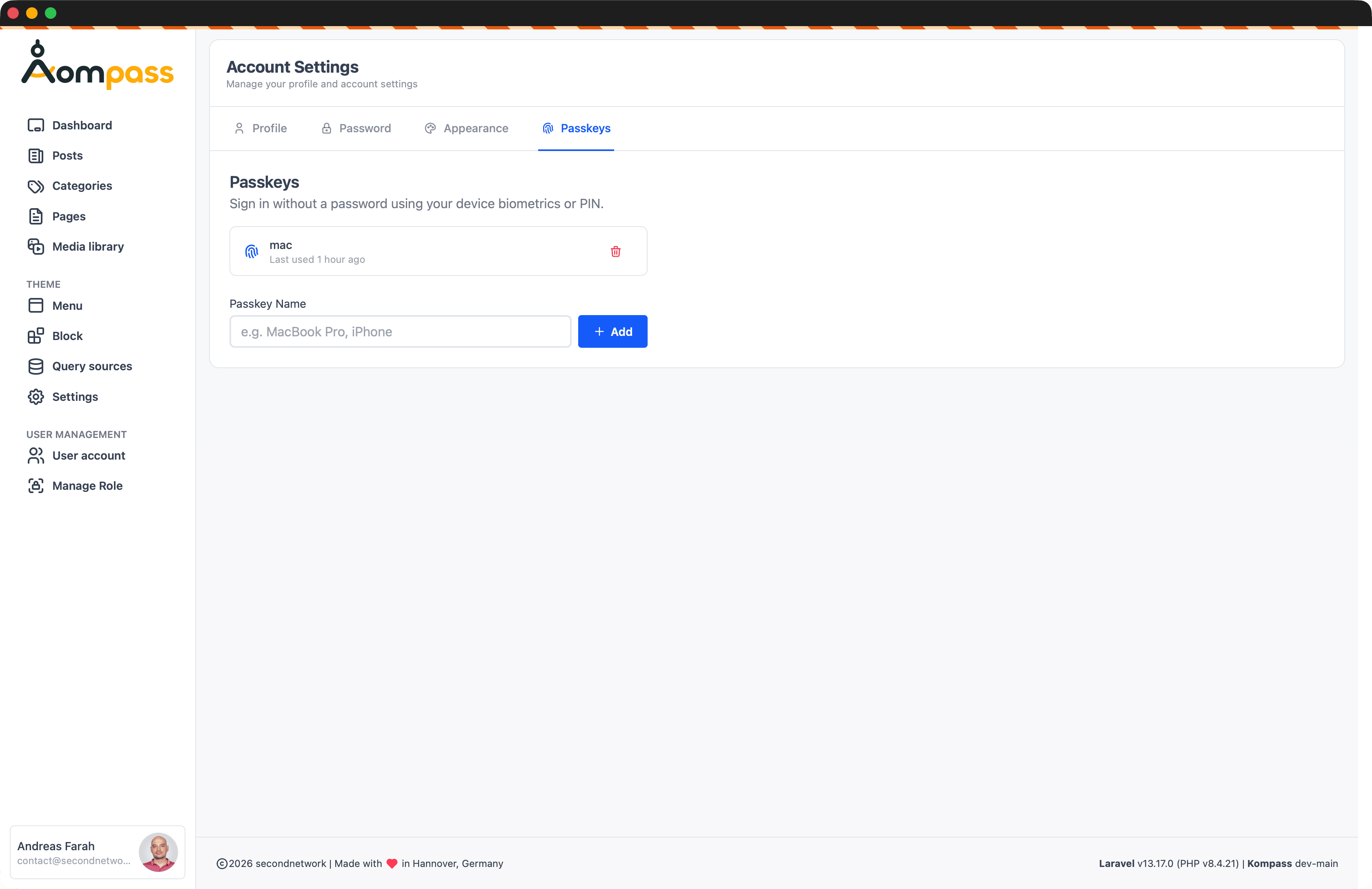
Register and manage passkeys to sign in without a password using your device's biometrics or PIN. Give a passkey a name (e.g. MacBook Pro), click Add, and complete the device prompt; remove a passkey with the trash icon. See Passkey Authentication for details.